How To Add Photos?
Click on Content Manager > Photo Gallery, write your Album name and click on "Add". The Album Will Created.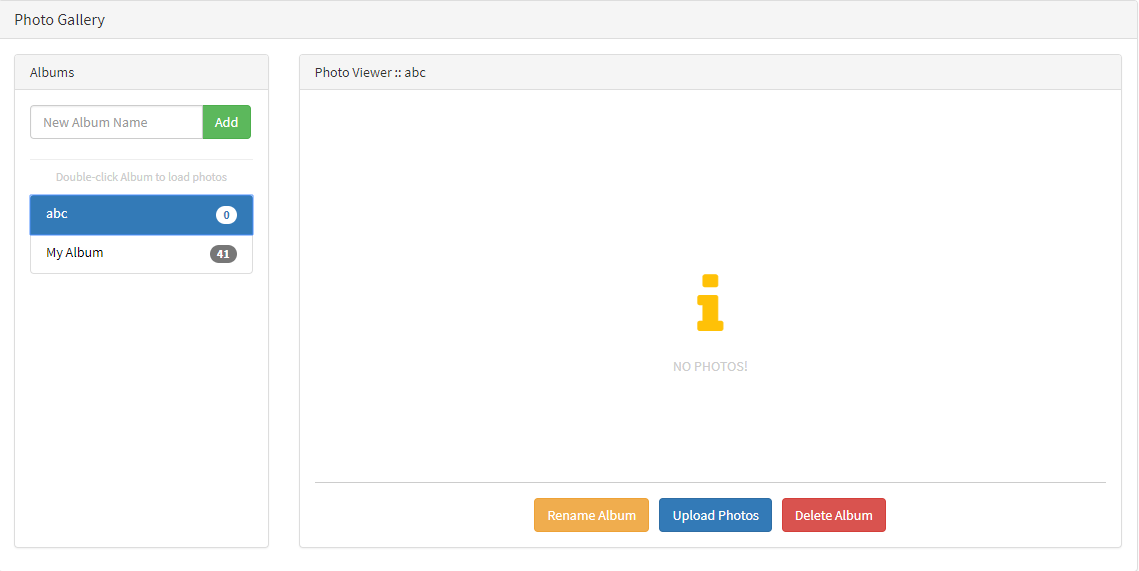
Double click on the created album. Now you can rename your album, can upload photos and can delete album.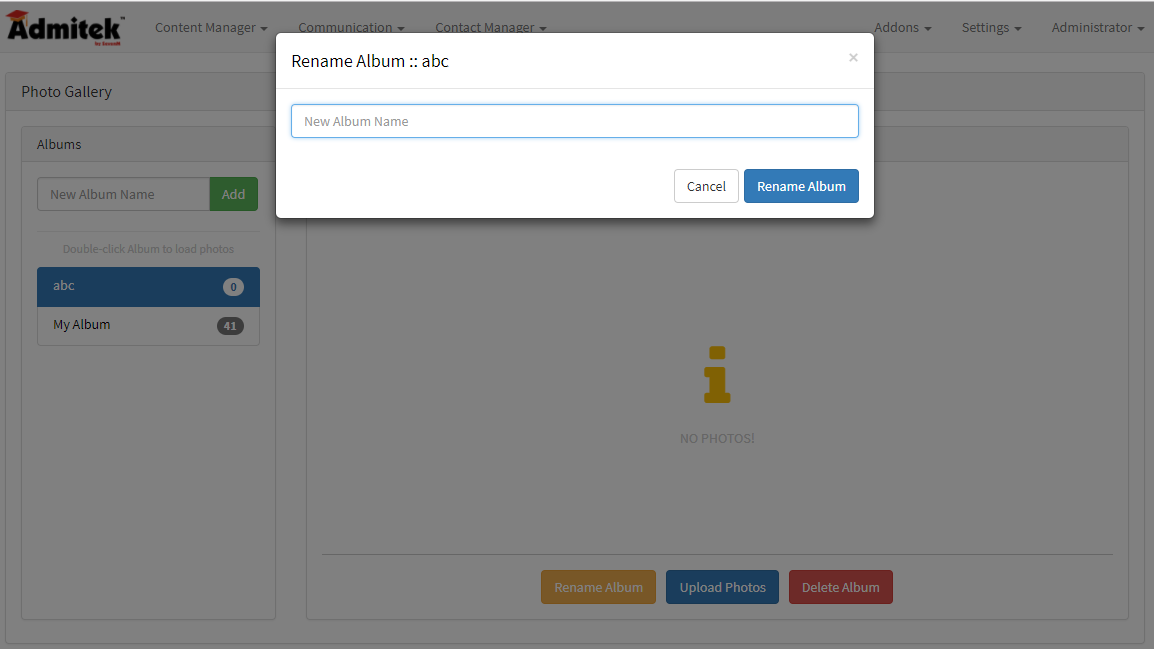
Write your new album name and click on "Rename Album" Or if you want to cancel then click on "Cancel".
To upload photos on your album, click on "Upload Photos" this window will appear. Then Click on "Add Files" and choose your photos which you want to upload and click on "Start Upload" .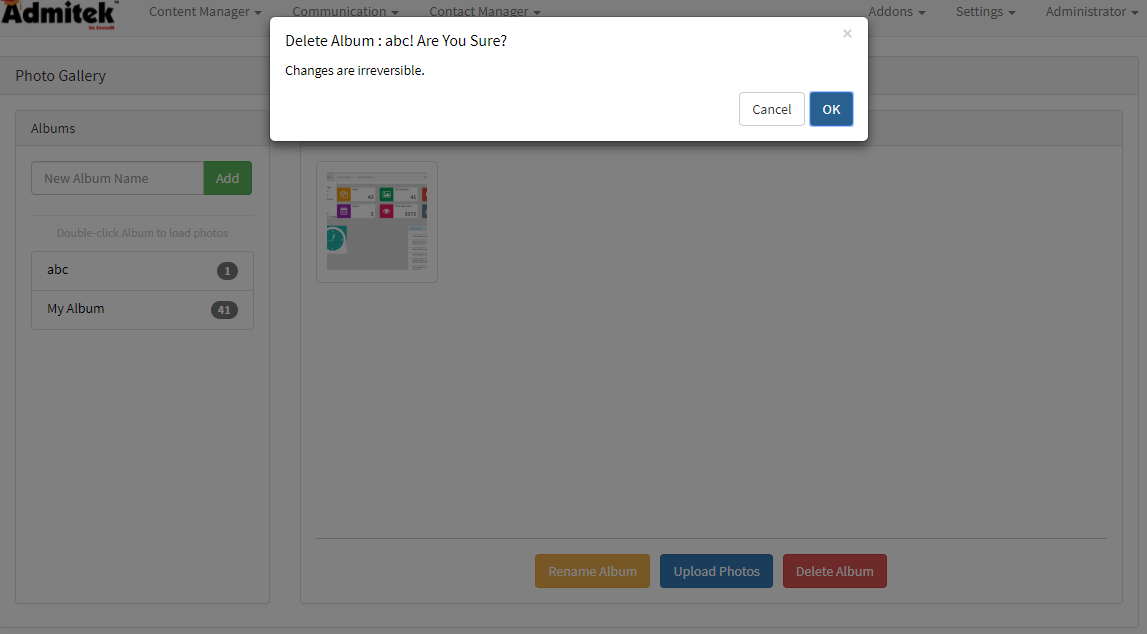
To delete the album, click on "Delete Album". Then a popup will appear, click on "Ok" to delete or click "Cancel" to cancel the deletion.
Related Articles
Content Manager Drop-Down
Clicking On Content-Manager, the drop-down will appear. Here you can perform the functions that are in Content-Manager menu like you can create new page on click "Create New Page", can update existing page on click "Manage Pages", can upload photos ...How to add Students?
Click on "Manage" from the top right side menu. Then click on "Students". Here you check all Students details. To add new Student, click on "Add New".. Fill all the details and click on "Add Student".How to add Teacher?
Click on "Manage" from the top right side menu. Then click on "Teacher". Here you check all Teacher details. To add new Teacher, click on "Add New".. Fill all the details and click on "Add Teacher".How to Add Lectures?
Click on "Manage" from the top right side menu. Then click on "Lectures". To add a lecture, click on "Add New".. Fill all the details and click on "Add Lecture".How to add patron?
Click on "Add Patron". A page will open. Fill all the details (* marked are mandatory fields). And click on "Add Patron".